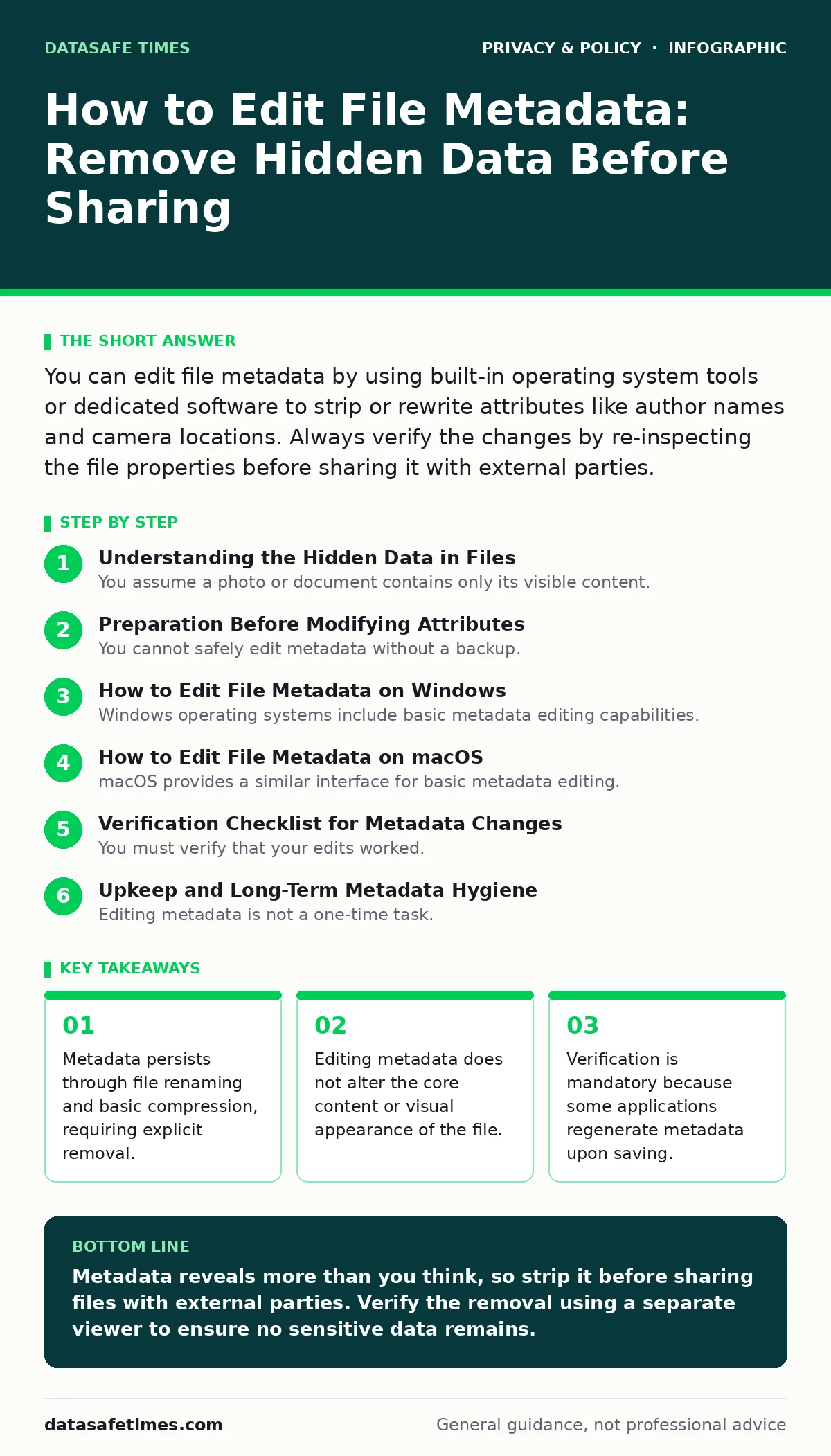
You can edit file metadata by using built-in operating system tools or dedicated software to strip or rewrite attributes like author names and camera locations. Always verify the changes by re-inspecting the file properties before sharing it with external parties.
Understanding the Hidden Data in Files
You assume a photo or document contains only its visible content. This assumption is incorrect. Every digital file carries metadata, which is structured information about the file itself. This data includes creation timestamps, modification histories, software versions, and device identifiers. For images, this often includes GPS coordinates from the camera. For documents, it includes author names and edit counts. You must understand this structure before you attempt to edit file metadata.
Metadata serves administrative purposes for operating systems and applications. It helps sort files, track versions, and render previews. However, it also creates a persistent digital fingerprint. When you share a file, you share this fingerprint. The recipient can extract this data using standard tools. This exposure happens regardless of your intent. You may wish to share a document without revealing the software used to create it or the location where the photo was taken. Editing metadata addresses this exposure.
Preparation Before Modifying Attributes
You cannot safely edit metadata without a backup. The process of stripping or rewriting attributes can corrupt the file if the tool fails or if the file format is proprietary. Create a duplicate of the original file. Perform all edits on the copy. Keep the original in a secure location. This ensures you can recover the data if the editing process introduces errors.
Check the file format before you begin. Some formats, like JPEG or PDF, support extensive metadata. Others, like PNG or plain text, support little or none. If you convert a file to a format with less metadata support, you may lose data unintentionally. Decide which attributes matter to you. You might want to keep the creation date but remove the author name. Identify these targets before you open any tools. This focus prevents accidental data loss.
How to Edit File Metadata on Windows
Windows operating systems include basic metadata editing capabilities. Right-click the file and select Properties. Navigate to the Details tab. You will see fields for Title, Authors, Tags, and Comments. Click directly into these fields to edit them. You can delete the text or replace it with generic information. This method works for common file types like documents and images.
This built-in method does not remove all metadata. It only clears the fields visible in the Properties window. Hidden attributes, such as camera sensor data or GPS coordinates, remain intact. To remove these, you need additional software. Many users rely on third-party tools for complete sanitization. These tools scan the binary structure of the file and remove unrecognized or sensitive blocks. Use reputable tools that follow open standards for metadata handling.
How to Edit File Metadata on macOS
macOS provides a similar interface for basic metadata editing. Right-click the file and select Get Info. Look for the Comments field. You can add or remove text here. For more detailed control, open the file in its native application. For example, open an image in Preview. Select Tools and then Show Inspector. Click the Exif tab to view camera data. You cannot edit Exif data directly in Preview, but you can see what is there.
To remove Exif data on macOS, you often need to export the file. Open the image and choose Export. Some export options allow you to deselect metadata fields. This creates a new file with reduced metadata. This method is safer than using command-line tools if you are unfamiliar with them. Command-line tools offer precision but carry a higher risk of user error. Stick to graphical interfaces for routine tasks.
Step 1: Select the Target File
Choose the file you wish to modify. Ensure it is a copy, not your original master. Verify the file type is supported by your editing tool. If you are unsure, check the tool’s documentation for supported formats. Attempting to edit an unsupported format may result in no changes or file corruption.
Step 2: Open the Metadata Editor
Launch your chosen metadata editing application. Load the file into the editor. Most tools display the metadata in a tree view or a list. Identify the fields you want to change. Common targets include Author, Camera Model, GPS Latitude, and GPS Longitude. Do not change fields that are required for the file to open correctly.
Step 3: Modify or Delete the Fields
Click the field you want to change. Delete the existing value or enter a new one. For privacy, deletion is usually preferred over replacement. Replacing data with fake information can still reveal patterns. For example, if you replace your real location with a different city, an analyst might still infer your general region based on time zones. Delete the data entirely if you do not need it.
Step 4: Save the Modified File
Apply the changes and save the file. Some tools save over the original file. Others create a new file. Always choose the option to create a new file. This preserves the original state. Name the new file clearly to distinguish it from the original. This prevents confusion in your file management system.
Verification Checklist for Metadata Changes
You must verify that your edits worked. Do not assume the tool succeeded. Use a metadata viewer to inspect the modified file. Compare the output with the original. Look for the specific fields you targeted. Ensure they are empty or contain the new values. Check for unexpected fields that may have been added. Some tools add their own tags to indicate processing.
- Open the modified file in a metadata viewer.
- Confirm targeted fields are removed or changed.
- Check for new tags added by the editing tool.
- Verify the file opens correctly in its native application.
- Ensure no residual GPS data remains in images.
This checklist ensures you catch errors before sharing. A missing check can leave sensitive data exposed. The cost of verification is low. The cost of exposure is high. Make this step a habit. It takes seconds but provides significant assurance.
Upkeep and Long-Term Metadata Hygiene
Editing metadata is not a one-time task. You create new files every day. Each new file carries new metadata. You must establish a workflow to handle this. Configure your applications to minimize metadata collection. For example, disable location services for your camera app. Set your document software to remove personal information before saving. These settings reduce the need for manual editing later.
Regularly audit your shared files. If you work in a team, establish a standard for metadata handling. Define which fields are allowed and which are prohibited. Use automated tools to strip metadata before files leave your network. This automation reduces human error. It ensures consistency across all outgoing communications. Consistency is key to maintaining privacy over time.
Imagine you send a report to a client. The client uses a script to extract all metadata from your files. They find your internal server names and employee IDs in the file properties. This breach of trust can damage your professional reputation. By stripping metadata consistently, you prevent this scenario. You control the narrative of your digital output.
Related Privacy Considerations
Metadata is just one aspect of digital privacy. You should also consider how your data is tracked online. Understanding data brokers helps you see where your personal information ends up. These entities collect and sell your details, often sourced from public records and digital footprints. Similarly, social media privacy risks extend beyond what you post. The platform collects metadata about your usage patterns, connections, and location.
You might also look into email tracking pixels. These are invisible images embedded in emails that report when you open a message. They collect metadata about your reading habits and device type. While not file metadata, they represent a similar concept: hidden data revealing your behavior. Protecting yourself requires awareness of these mechanisms. You cannot protect what you do not understand.
Limitations of Metadata Editing
Editing metadata does not provide complete anonymity. If you share a file, the recipient can still analyze its content. They can infer your location from landmarks in a photo. They can infer your software from formatting quirks in a document. Metadata editing removes explicit labels. It does not remove implicit clues. You must consider the content itself.
Some file formats embed metadata in ways that are difficult to remove. Proprietary formats may hide data in binary blobs that standard tools cannot parse. In these cases, converting to an open standard like PDF or JPEG may be necessary. However, conversion can alter the file’s appearance or functionality. Weigh the privacy benefit against the functional cost. Sometimes, the risk of exposure is acceptable. Other times, it is not.
Key takeaways
- Metadata persists through file renaming and basic compression, requiring explicit removal.
- Editing metadata does not alter the core content or visual appearance of the file.
- Verification is mandatory because some applications regenerate metadata upon saving.
Metadata reveals more than you think, so strip it before sharing files with external parties. Verify the removal using a separate viewer to ensure no sensitive data remains.
Frequently asked questions
Does renaming a file remove its metadata?
No, renaming a file only changes its label. The underlying metadata, including creation dates and author information, remains intact within the file structure.
Can I recover deleted metadata from a file?
Generally, no. Once metadata is stripped from the file itself, it is gone. However, if you have the original file or a backup, you can restore the metadata from that source.
Do all file types contain metadata?
Most digital files contain some form of metadata. Images, documents, and audio files typically have extensive metadata. Plain text files usually have very little, often just timestamps.
Is it legal to edit file metadata?
Yes, editing metadata in files you own or have permission to modify is legal. It is a standard practice for privacy and organizational purposes. Ensure you do not violate any specific contractual obligations.
How this guide was produced: written by the DataSafe Times editorial team with AI assistance, checked against the public references listed below, and reviewed when the facts change. See our editorial policy or report an error.