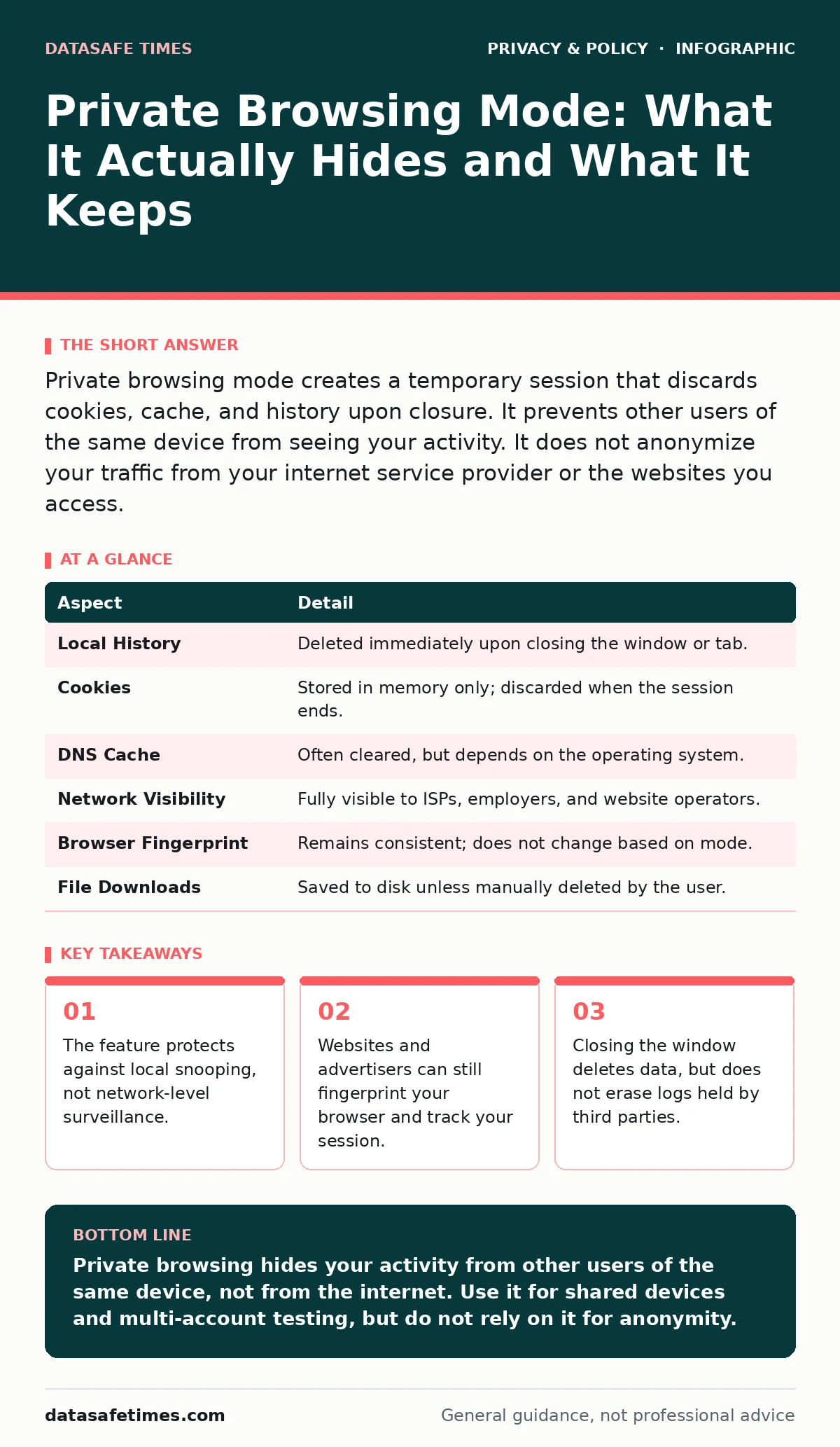
Private browsing mode creates a temporary session that discards cookies, cache, and history upon closure. It prevents other users of the same device from seeing your activity. It does not anonymize your traffic from your internet service provider or the websites you access.
The Temporary Guest Analogy
Imagine you visit a library to read a book. You take notes on a napkin. When you leave, you crumple the napkin and throw it in the trash. The library staff never saw what you read, but the author of the book knows you bought a copy. Private browsing operates on this exact principle. It ensures no physical trace remains on the machine you used. However, the external entities you interact with retain their own records.
This distinction matters because most users assume "private" means "invisible." It does not. It means "local." The browser simply refuses to write certain data to the disk. The network traffic still flows through the same pipes. The servers still process your requests. The only change is the absence of a local ledger.
| Aspect | Detail |
|---|---|
| Local History | Deleted immediately upon closing the window or tab. |
| Cookies | Stored in memory only; discarded when the session ends. |
| DNS Cache | Often cleared, but depends on the operating system. |
| Network Visibility | Fully visible to ISPs, employers, and website operators. |
| Browser Fingerprint | Remains consistent; does not change based on mode. |
| File Downloads | Saved to disk unless manually deleted by the user. |
The Local Storage Problem
The primary function of private browsing is to solve the shared-device problem. Suppose you use a library computer, a hotel laptop, or a family tablet. You do not want the next user to see which sites you visited. Standard browsers save history, form data, and cookies to speed up future visits. This creates a permanent record on the hard drive.
Private mode intercepts this behavior. Instead of writing to the file system, the browser keeps session data in volatile memory. When you close the window, that memory is released. The data vanishes. This prevents casual snooping by anyone who picks up the device after you. It also stops websites from reading old cookies to build a long-term profile of your habits on that specific machine.
However, this only affects the client side. The server side of the equation remains unchanged. The website still receives your request. It still logs your IP address. It still sets new cookies for the duration of the session. The privacy benefit is strictly confined to the physical device you are holding.
What Gets Tracked Anyway
Many users believe that private browsing hides their identity from the internet. This is a fundamental misunderstanding of how the web works. Your internet service provider sees every domain you request. Your employer’s network administrator sees the same. The website you visit sees your IP address and browser configuration.
Even without cookies, websites can use browser fingerprinting. This technique identifies you by your screen resolution, installed fonts, operating system version, and hardware capabilities. This data is often unique enough to track you across sessions. Private mode does not randomize these values. It does not add noise to your signals. You remain the same digital entity to the observer.
Furthermore, login sessions are often tied to accounts, not just cookies. If you enter your username and password, the service associates that activity with your identity. Private mode does not mask your credentials. It only ensures that the password field does not autofill next time you use the browser. The account activity is logged on the server side, regardless of your local browser settings.
The Fingerprinting Edge Case
For developers, the most interesting aspect of private mode is how it interacts with storage APIs. Modern browsers use various storage mechanisms: local storage, session storage, IndexedDB, and service workers. Private mode typically disables persistent local storage. It forces the browser to use ephemeral storage instead.
This creates a subtle behavioral difference. Websites can detect whether they are running in a private window by attempting to write to local storage and checking if the data persists. This detection method is known as heuristic fingerprinting. It allows sites to serve different content or block access based on the mode.
This has implications for testing. If you develop a web application, you must ensure it functions correctly when local storage is unavailable. Relying on persistent storage for critical state can break the user experience in private mode. You should design your application to degrade gracefully. Session storage or in-memory variables should handle temporary state. This ensures compatibility across all browser modes.
Where It Fits in Defense
Private browsing is a layer in a broader privacy strategy. It sits alongside other measures like end-to-end encryption, which protects the content of your communications. It complements anonymization techniques, which obscure your identity from data collectors. It is distinct from the role of data protection officers, who manage organizational compliance.
It does not replace the need for privacy audits, which assess how data is handled across systems. It does not stop ISP tracking, which occurs at the network level. It does not prevent email tracking pixels, which are images loaded from remote servers. Understanding these boundaries is key to effective privacy management.
You might use private mode when testing a new website to avoid polluting your main cookies. You might use it when accessing sensitive work data on a personal device. But you should not use it when you need to hide from an adversary with network access. For that, you need tools designed for anonymity, not just local cleanup.
See also: Formjacking Explained: How Script Injection Steals Payment Data · Botnet Attack Myths Debunked: What Operators Actually Do
Common Misconceptions
The most persistent myth is that private browsing deletes everything. It does not delete downloaded files. It does not delete bookmarks you create. It does not delete history from the server side. It only deletes the local browser history and cookies.
Another misconception is that it prevents malware. It does not. If you download a malicious file, it is saved to your disk. If you visit a site with a vulnerability, your browser can still be exploited. Private mode is not a sandbox. It is a session management feature.
Finally, many believe it stops all tracking. It stops cookie-based tracking from persisting across sessions. It does not stop first-party cookies from working during the session. It does not stop third-party scripts from executing. It does not stop fingerprinting. The tracking continues; it just resets when you close the window.
Practical Usage Patterns
Use private mode when you need to log into multiple accounts for the same service. For example, testing a user account and an admin account simultaneously. Standard cookies would conflict. Private mode isolates the sessions.
Use it when you borrow a device. It ensures your search history and form data do not remain for the next user. It is a courtesy and a basic hygiene practice.
Do not use it as your primary privacy tool. If you want to avoid tracking, consider using browser extensions that block trackers. Consider using privacy-focused DNS resolvers. Consider reviewing the permissions you grant to applications. Private mode is a small piece of a larger puzzle.
Integration With Other Controls
Private browsing works best when combined with other privacy controls. For instance, disabling third-party cookies in your main browser settings reduces the amount of data private mode needs to clean up. Using a password manager ensures you do not save credentials in the browser, regardless of the mode.
It also interacts with data subject access requests. If you request your data from a service, the provider will give you server-side logs. These logs exist regardless of whether you used private mode. The request reveals what the server knows, not what the browser kept.
Understanding this separation helps you set realistic expectations. You control your local device. You do not control the network or the servers. Private mode gives you control over the local record. It does not give you control over the external record.
Key takeaways
- The feature protects against local snooping, not network-level surveillance.
- Websites and advertisers can still fingerprint your browser and track your session.
- Closing the window deletes data, but does not erase logs held by third parties.
- It is a convenience tool, not a security or anonymity solution.
Private browsing hides your activity from other users of the same device, not from the internet. Use it for shared devices and multi-account testing, but do not rely on it for anonymity.
Frequently asked questions
Does private browsing hide my IP address?
No. Your IP address is visible to every website you visit and your internet service provider. Private mode does not route your traffic through a proxy or VPN.
Can my employer see what I do in private mode?
Yes. If you are on a corporate network, the employer can monitor all traffic. Private mode only prevents local history storage on the device.
Does private mode delete downloaded files?
No. Files you download are saved to your computer’s disk. You must manually delete them if you do not want them to remain.
Is private mode the same as incognito mode?
Yes. Incognito is the term used by Chrome and Edge. Safari calls it Private Browsing. Firefox calls it Private Window. They function identically.
How this guide was produced: written by the DataSafe Times editorial team with AI assistance, checked against the public references listed below, and reviewed when the facts change. See our editorial policy or report an error.