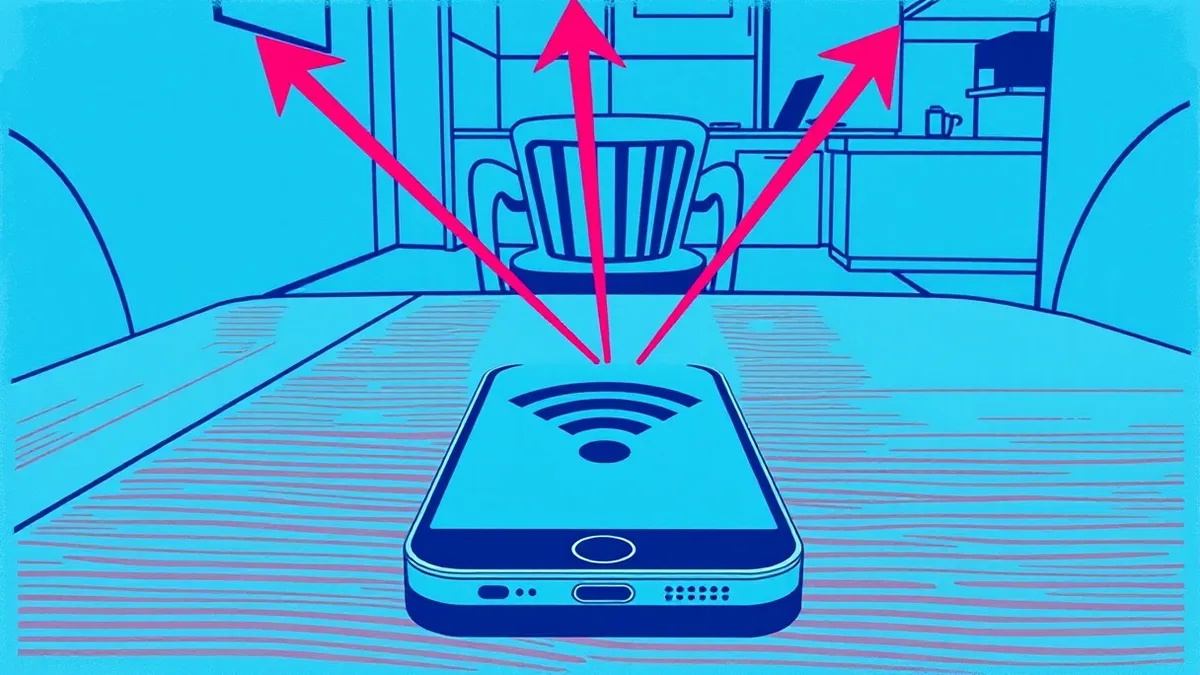
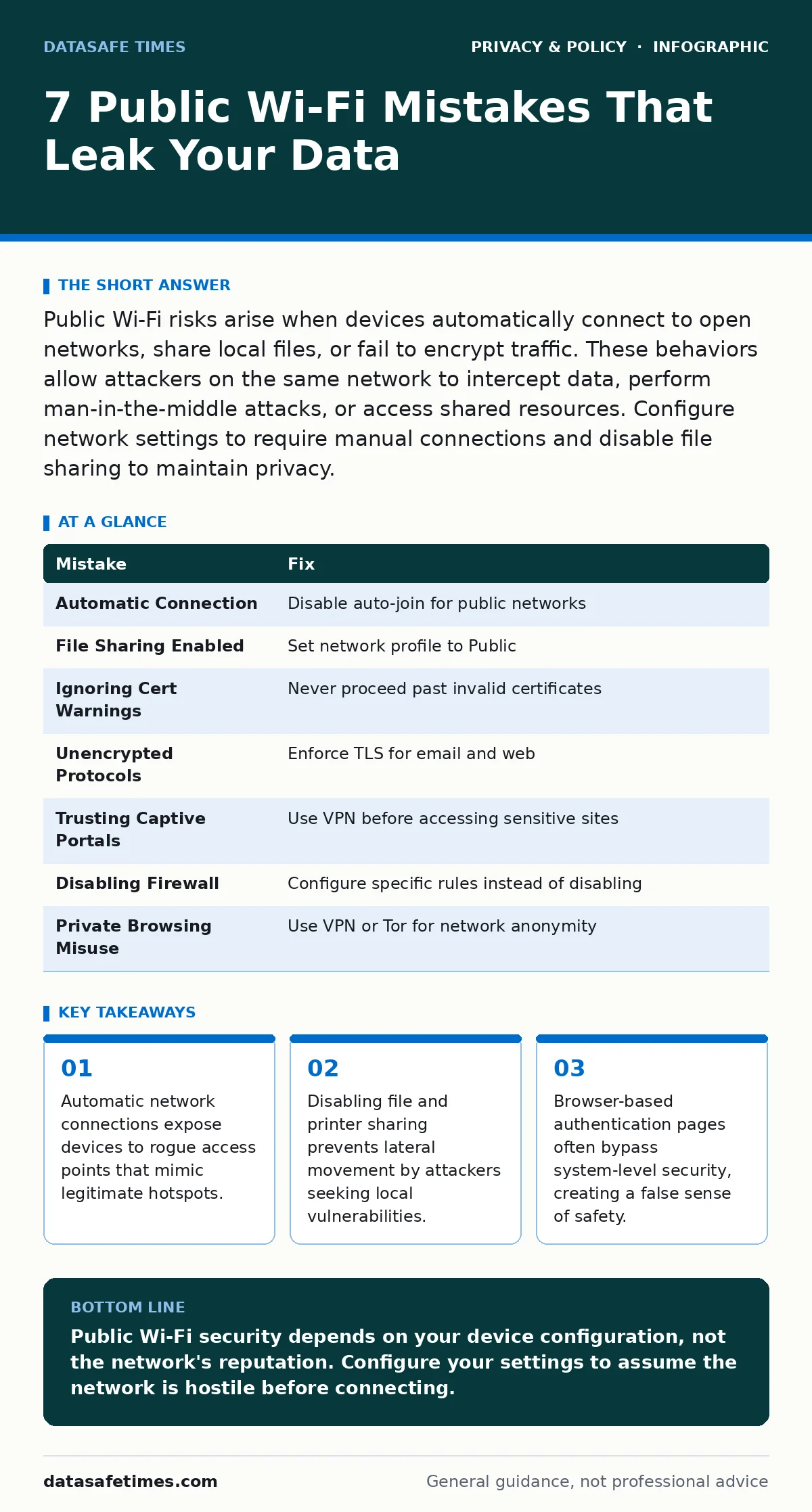
Public Wi-Fi risks arise when devices automatically connect to open networks, share local files, or fail to encrypt traffic. These behaviors allow attackers on the same network to intercept data, perform man-in-the-middle attacks, or access shared resources. Configure network settings to require manual connections and disable file sharing to maintain privacy.
Mistake 1: Automatic Connection to Open Networks
Operating systems are designed to remember networks for convenience. This convenience creates a significant security vector on public Wi-Fi. When your device joins a network automatically, it sends beacon frames containing its MAC address. Attackers can scan for these beacons to identify specific devices or create rogue access points with the same SSID as a trusted network. Your device connects to the rogue point without your knowledge, placing all traffic under the attacker's control.
Why it hurts:
Automatic joining removes your ability to verify the network's legitimacy. A rogue access point can mimic the exact name and security settings of a previous legitimate network. Once connected, your device may perform background updates or sync data, sending sensitive information over an unencrypted channel. The attacker does not need to hack your device; they simply sit in the middle of the communication stream.
The fix:
Disable automatic joining for all public and open networks in your operating system settings. Configure your device to prompt for confirmation before connecting to any new network. This adds a friction step that prevents silent connections to malicious hotspots. You should also disable the feature that allows your device to broadcast its presence to nearby networks, reducing the surface area for discovery.
Mistake 2: Leaving File and Printer Sharing Enabled
Most desktop operating systems enable file and printer sharing by default to simplify home network setups. This setting remains active when you move to public spaces unless explicitly changed. On a public Wi-Fi network, every device shares the same local subnet. If sharing is enabled, your device exposes directories, printers, and sometimes administrative interfaces to any other device on that subnet. Attackers scan for open shares to find unpatched vulnerabilities or sensitive documents.
Why it hurts:
An attacker with a scanner can identify your machine and attempt to exploit known vulnerabilities in the sharing protocol. Even if the share is password-protected, weak passwords or default credentials can be brute-forced. In some cases, the sharing service itself may have a buffer overflow vulnerability that allows remote code execution. You are effectively inviting strangers to browse your local file system.
The fix:
Set your network profile to "Public" when connecting to Wi-Fi in cafes, airports, or hotels. This profile disables file and printer sharing automatically. If you use a private profile for flexibility, manually disable sharing in the network settings before connecting to public networks. Verify that no folders are shared with the world by checking the network visibility settings in your control panel.
Mistake 3: Ignoring Certificate Warnings
When you visit a website over HTTPS, your browser checks the server's digital certificate. On public Wi-Fi, attackers may attempt a man-in-the-middle attack by presenting a fake certificate. Browsers display a prominent warning when the certificate is invalid, self-signed, or expired. Many users dismiss this warning to access the site, assuming the risk is low or the site is broken. This action explicitly tells the browser to trust the attacker's certificate for that session.
Why it hurts:
Dismissing the warning allows the attacker to decrypt and read your traffic in real-time. The attacker can modify the content you see, inject malware, or steal login credentials. The browser's security model relies on the user rejecting invalid certificates. By accepting them, you bypass the only defense standing between your data and the attacker. The encryption still exists, but it encrypts your data to the attacker instead of the legitimate server.
The fix:
Never proceed past certificate warnings on public networks. If a site shows an error, disconnect from the Wi-Fi and use a cellular data connection to verify the site's status. If the site is legitimate, the error indicates an active interception attempt. Configure your browser to block mixed content and ensure it is updated to the latest version to recognize current certificate authorities.
Mistake 4: Using Unencrypted Protocols for Email and Web
Many users access email or legacy web services using unencrypted protocols like HTTP, FTP, or POP3. On a home network, this might be acceptable if the traffic stays local. On public Wi-Fi, every packet is visible to anyone on the network. Attackers use packet sniffers to capture this traffic. Without encryption, usernames, passwords, and message contents are transmitted in plain text. The attacker does not need to break encryption; they simply read the data as it passes through the router.
Why it hurts:
Plain text transmission allows immediate harvesting of credentials. An attacker can capture your email login and then access your account from anywhere. This compromises not just your email, but any other services linked to that account. The risk extends to any application that does not enforce TLS. Even if the website looks secure, the underlying protocol may be sending data in the clear.
The fix:
Ensure all applications use encrypted protocols. For email, use IMAP over TLS or SMTP over TLS. For web browsing, verify that the URL begins with HTTPS. Configure your email client to require encryption for both incoming and outgoing connections. Disable the option to allow unencrypted connections if the server supports encryption. This forces the application to fail securely rather than transmit data in plain text.
Mistake 5: Relying on Captive Portals for Security
Public Wi-Fi networks often use captive portals, where you must accept terms of service or enter a voucher code before gaining internet access. Users often assume this authentication process secures their connection. It does not. The portal only grants network access; it does not encrypt your traffic or verify the identity of the network operator. The network remains open to eavesdropping by other users on the same segment. The portal is a billing or legal mechanism, not a security control.
Why it hurts:
The illusion of security leads users to perform sensitive tasks like banking or email checks. The network operator can still see all your traffic unless you use end-to-end encryption. Other users on the network can also sniff your data. The captive portal itself can be a phishing vector, asking for personal information under the guise of authentication. You are trusting the network provider with your browsing habits and potentially your credentials.
The fix:
Treat the captive portal as a gateway to an untrusted network. Do not log into personal accounts until you have verified that your connection is encrypted. Use a virtual private network to tunnel your traffic through an encrypted channel before it reaches the public router. This ensures that even if the network operator or other users are watching, they only see encrypted data destined for your VPN server.
See also: Private file sharing services for small teams with zero budget
Mistake 6: Disabling Firewall for Connectivity Issues
When applications fail to connect on a public network, users often disable the firewall to troubleshoot. This is a common mistake that leaves the device completely exposed. The firewall blocks unsolicited incoming connections. Disabling it allows any device on the network to attempt to connect to your open ports. Attackers scan for open ports to find vulnerable services. Without the firewall, your device is an open door to potential exploitation.
Why it hurts:
An open firewall allows direct access to your system's services. If you have any service running, such as a web server, database, or remote desktop, it becomes accessible to anyone on the network. Attackers can exploit vulnerabilities in these services to gain control of your device. The risk is immediate and severe, as there is no barrier to entry. Even if the services are not actively used, the open ports signal to attackers that the device is vulnerable.
The fix:
Keep the firewall enabled at all times. If connectivity issues arise, configure firewall rules to allow specific outbound traffic rather than disabling the entire firewall. Use application-specific rules to permit necessary connections while blocking all others. Regularly review firewall logs to identify any blocked connection attempts, which may indicate scanning activity from malicious actors on the network.
Mistake 7: Assuming Private Browsing Hides Activity
Private browsing mode prevents the browser from storing history, cookies, and cache on the local device. Users often mistake this for anonymity on the network. It does not hide your activity from the network operator or other users on the public Wi-Fi. Your IP address and traffic patterns are still visible. The network provider can still see which websites you visit and what data you transmit. Private browsing only protects your local device from other users who might use it later.
Why it hurts:
The misconception leads to a false sense of privacy. You may engage in activities you would not want the network provider to see, assuming they are private. In reality, the provider logs your DNS queries and traffic metadata. This data can be used for profiling or sold to third parties. The lack of local history does not equate to network invisibility. Your digital footprint remains visible to anyone monitoring the network traffic.
The fix:
Understand that private browsing is a local privacy feature, not a network anonymity tool. For true privacy on public networks, use a virtual private network or the Tor network. These tools encrypt your traffic and route it through multiple nodes, hiding your IP address and activity from the local network. Combine this with tracker blockers to prevent websites from linking your activity across different sessions.
| Mistake | Fix |
|---|---|
| Automatic Connection | Disable auto-join for public networks |
| File Sharing Enabled | Set network profile to Public |
| Ignoring Cert Warnings | Never proceed past invalid certificates |
| Unencrypted Protocols | Enforce TLS for email and web |
| Trusting Captive Portals | Use VPN before accessing sensitive sites |
| Disabling Firewall | Configure specific rules instead of disabling |
| Private Browsing Misuse | Use VPN or Tor for network anonymity |
Key takeaways
- Automatic network connections expose devices to rogue access points that mimic legitimate hotspots.
- Disabling file and printer sharing prevents lateral movement by attackers seeking local vulnerabilities.
- Browser-based authentication pages often bypass system-level security, creating a false sense of safety.
Public Wi-Fi security depends on your device configuration, not the network's reputation. Configure your settings to assume the network is hostile before connecting.
Frequently asked questions
Does a VPN hide my activity from the Wi-Fi provider?
Yes, a VPN encrypts your traffic, preventing the provider from seeing the content or specific websites you visit, though they can still see that you are using a VPN.
Is cellular data safer than public Wi-Fi?
Cellular data is generally safer because the encryption is handled by the carrier and is difficult for local attackers to intercept, unlike open Wi-Fi networks.
Can I trust a password-protected public Wi-Fi?
No, the password only prevents unauthorized users from joining the network. It does not encrypt traffic between users, allowing them to still sniff each other's data.
How do I know if a network is rogue?
Rogue networks mimic legitimate SSIDs. Verify the network name with staff or use a VPN to ensure your traffic is encrypted regardless of the network's legitimacy.
How this guide was produced: written by the DataSafe Times editorial team with AI assistance, checked against the public references listed below, and reviewed when the facts change. See our editorial policy or report an error.