
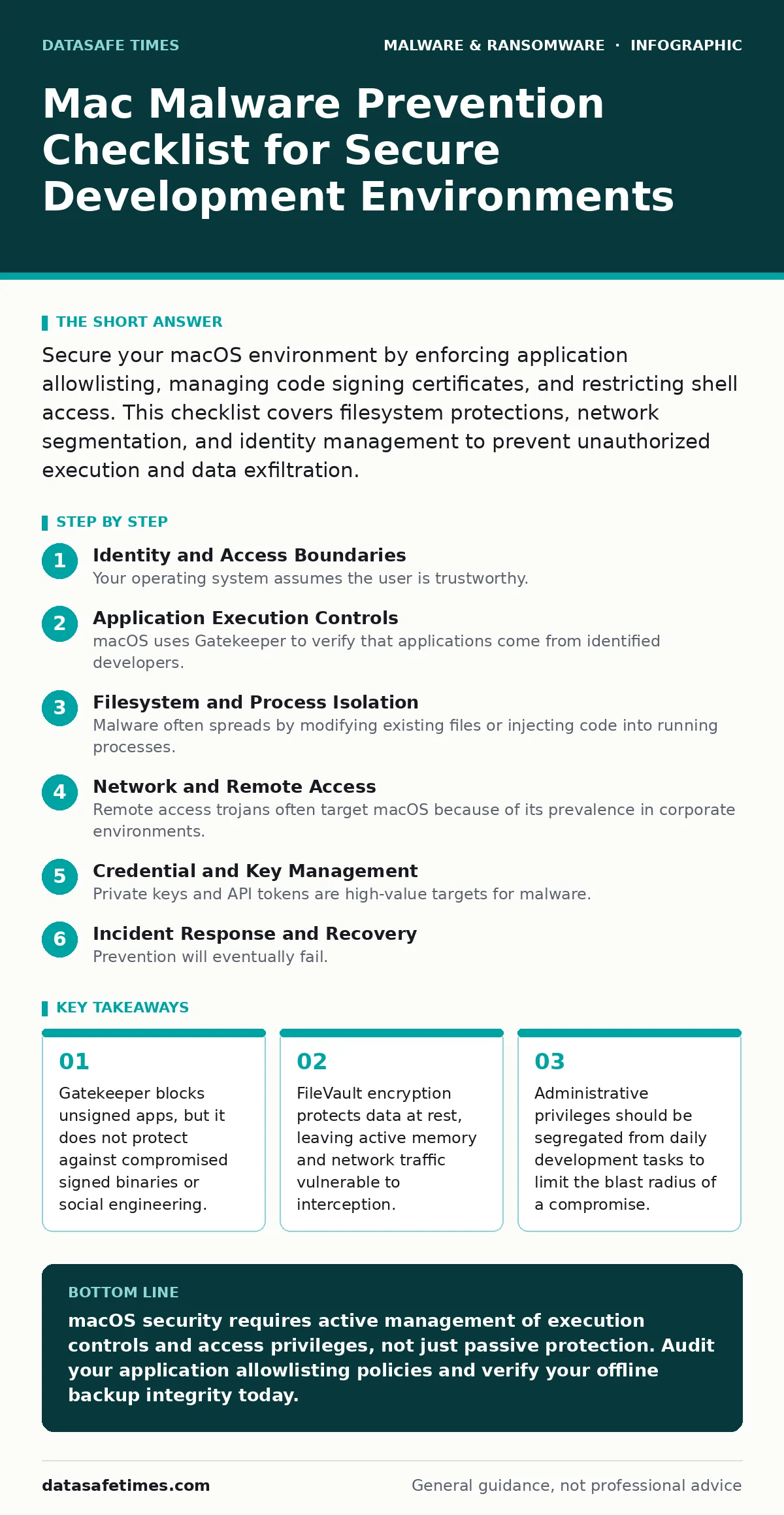
Secure your macOS environment by enforcing application allowlisting, managing code signing certificates, and restricting shell access. This checklist covers filesystem protections, network segmentation, and identity management to prevent unauthorized execution and data exfiltration.
Identity and Access Boundaries
Your operating system assumes the user is trustworthy. Malware exploits this trust by running with the privileges you grant. Restricting access prevents an attacker from modifying system files or installing persistent backdoors.
- Enable FileVault full-disk encryption: Encrypts the entire volume so stolen hardware yields no readable data without the boot password.
- Use a system password manager: Prevents credential reuse and stores complex keys that resist brute-force attacks.
- Disable automatic login: Forces authentication at boot, ensuring an attacker cannot access the desktop if the machine restarts.
- Separate admin and standard accounts: Daily development work occurs in a standard account, limiting the impact of a compromised session.
Application Execution Controls
macOS uses Gatekeeper to verify that applications come from identified developers. This check happens once at installation. It does not monitor behavior after the app runs. You must assume that any executable on your disk could be malicious.
- Enforce application allowlisting: Restricts execution to a pre-approved list of binaries, blocking zero-day exploits that bypass signature checks.
- Verify code signing certificates: Ensures the binary has not been tampered with since the developer signed it, detecting subtle modifications.
- Disable unsigned kernel extensions: Prevents low-level drivers from loading, which could intercept hardware input or network traffic.
- Review third-party app permissions: Limits access to camera, microphone, and screen recording, reducing the attack surface for spyware.
Filesystem and Process Isolation
Malware often spreads by modifying existing files or injecting code into running processes. macOS provides several mechanisms to isolate these actions. Understanding how these layers interact helps you identify gaps in your defense.
- Enable System Integrity Protection: Locks down critical system directories, preventing even root users from modifying core binaries.
- Use sandboxing for untrusted code: Restricts network access and file system writes for applications that process external data.
- Disable legacy Java plugins: Removes an outdated execution environment that frequently contains unpatched vulnerabilities.
- Clear browser cache regularly: Removes temporary files that could contain malicious scripts or downloaded payloads.
Suppose you download a script to automate a task. If you run it without sandboxing, it can access your entire home directory. Sandboxing limits its reach to a specific container, containing the damage if the script is malicious.
Network and Remote Access
Remote access trojans often target macOS because of its prevalence in corporate environments. Attackers use SSH or remote management tools to gain control. Securing these channels prevents lateral movement within your network.
- Disable remote login unless needed: Closes the SSH port to external attackers who scan for open services.
- Use network segmentation: Isolates development machines from production servers, limiting the spread of an infection.
- Monitor outbound connections: Detects data exfiltration attempts that bypass traditional inbound firewall rules.
- Disable AirDrop and Handoff in public: Prevents nearby devices from sending malicious files or initiating connections.
Credential and Key Management
Private keys and API tokens are high-value targets for malware. Once stolen, these credentials allow attackers to access cloud resources or sign malicious code. Protecting them requires strict access controls and regular rotation.
- Store secrets in the Keychain: Uses hardware-backed encryption to protect sensitive data from memory scraping attacks.
- Rotate API keys regularly: Limits the window of opportunity for an attacker who has stolen a valid credential.
- Avoid hardcoding credentials in scripts: Prevents accidental exposure of secrets through version control systems or log files.
- Use multi-factor authentication: Adds a second layer of verification, blocking access even if the password is compromised.
See also: 7 Mistakes That Leave You Open to Remote Access Trojans · Is Malware and Virus the Same? A Technical Breakdown
Incident Response and Recovery
Prevention will eventually fail. Having a plan in place ensures you can contain the damage and restore operations quickly. This section focuses on preparing for the worst-case scenario.
- Maintain offline backups: Stores copies of critical data that are not accessible to network-based ransomware.
- Document recovery procedures: Provides step-by-step instructions for restoring systems from a known good state.
- Test disaster recovery plans: Validates that backups are restorable and that the team can execute the plan under pressure.
- Monitor for potentially unwanted programs: Identifies adware or tracking software that may indicate a deeper compromise.
Imagine your machine is infected with ransomware that encrypts your local files. Without an offline backup, you have no choice but to pay the ransom. An offline backup allows you to wipe the system and restore your data without negotiation.
Maintenance and Updates
Software updates patch known vulnerabilities. Delaying updates leaves your system exposed to exploits that are already in the wild. Automated updates reduce the risk of human error.
- Enable automatic security updates: Installs critical patches immediately, reducing the window of exposure.
- Update third-party plugins: Ensures that browser extensions and development tools are free from known vulnerabilities.
- Review installed applications: Removes unused software that could serve as an entry point for malware.
- Check for firmware updates: Patches hardware-level vulnerabilities that can bypass operating system security.
Key takeaways
- Gatekeeper blocks unsigned apps, but it does not protect against compromised signed binaries or social engineering.
- FileVault encryption protects data at rest, leaving active memory and network traffic vulnerable to interception.
- Administrative privileges should be segregated from daily development tasks to limit the blast radius of a compromise.
macOS security requires active management of execution controls and access privileges, not just passive protection. Audit your application allowlisting policies and verify your offline backup integrity today.
Frequently asked questions
Does macOS have built-in antivirus?
macOS includes Gatekeeper and XProtect, which block known malware and verify app signatures, but they do not provide real-time behavioral analysis like traditional antivirus.
Is FileVault enough to protect against ransomware?
FileVault protects data at rest, but ransomware encrypts files while the system is running and unlocked, bypassing disk encryption.
How this guide was produced: written by the DataSafe Times editorial team with AI assistance, checked against the public references listed below, and reviewed when the facts change. See our editorial policy or report an error.